Add the SDK to your Unity project
-
Verify Unity Player Settings
-
In Unity Editor, open Player Settings pane ()
-
Switch to Android tab

-
Under
-
Fill in your app
Bundle IdentifierThe value must follow the convention 'com.YourCompanyName.YourProductName' and can contain only alphanumeric characters and underscore.
-
Set
Minimum API LeveltoAndroid … (API Level 25)
-
-
Under
-
Enable
Custom Gradle Template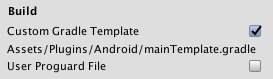
-
-
-
Switch to iOS tab

-
Fill in your app
Bundle Identifier -
Fill in your
Automatic Signing Team ID-
You can find it on the Apple Developer website under Account > Membership.

-
-
Under
-
Set
Target minimum iOS Versionto12
-
-
-
-
Integrate Facebook SDK for Unity into your project.
-
Download Facebook Unity SDK v18.0.0 and follow Facebook Unity SDK integration instructions.
-
Set the following Facebook login permissions:
email, public_profile
-
-
Integrate Smarty SDK for Unity into your project.
-
Download Smarty Unity SDK v1.14.0.
-
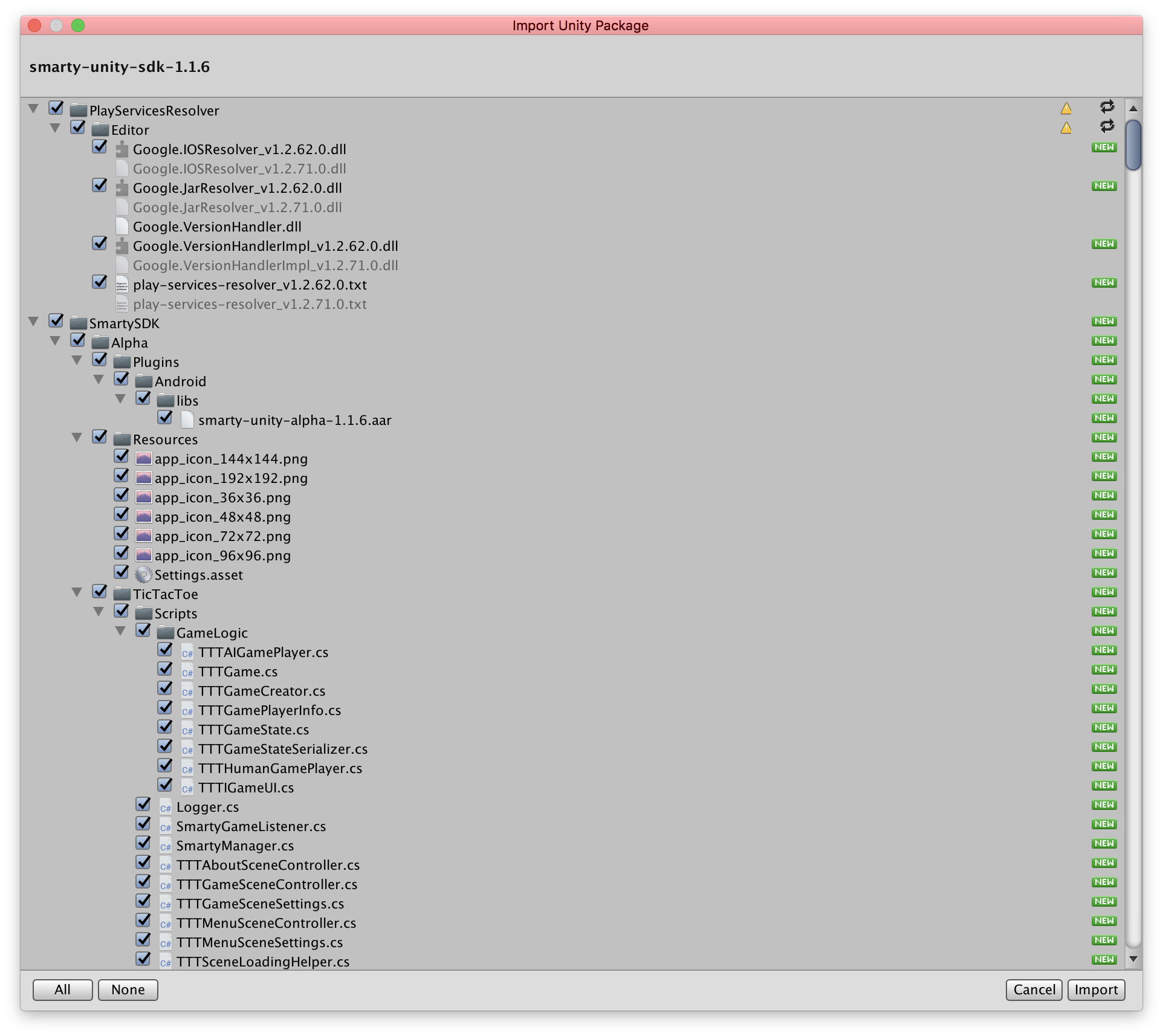
In the Unity Editor menu, select . Navigate to the directory where you downloaded Smarty SDK for Unity and select
smarty-unity-sdk-x.y.z.unitypackage.
-
Import all of the assets in the package.
-
Save your project.
A post-build script will add a new menu item "Smarty" to the Unity Editor. If you don’t see this, check your build for compilation errors and try building again.
-
-
Verify External Dependency Manager for Unity configuration
-
Open External Dependency Manager Android Settings dialog ()
-
Make sure that the following settings are enabled:
-
Use Gradle Daemon -
Patch mainTemplate.gradle -
Use Jetifier
-
-
Open External Dependency Manager iOS Settings dialog ()
-
Make sure that
Link frameworks staticallyoption is unchecked.
-
-
-
Configure Smarty SDK
-
In Unity Editor menu, select
-
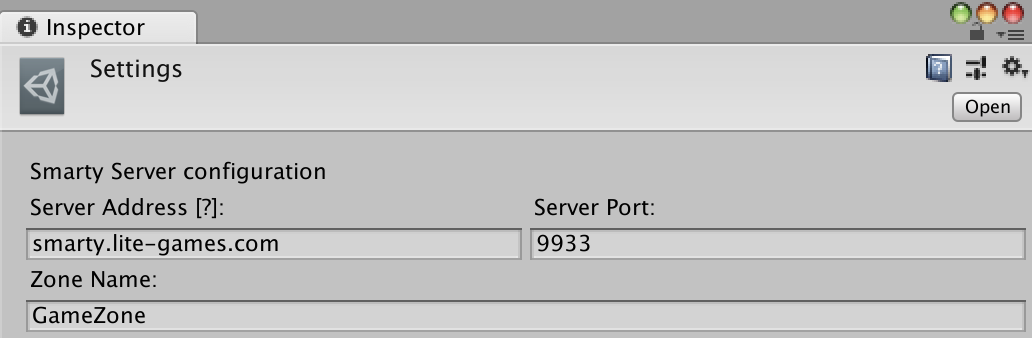
Enter Smarty server data that you received from us:
-
server address
-
server port
-
zone name
-
-
-
Initialize Smarty SDK
-
Open main scene of your project.
-
Add
SmartyInitobject.-
Create empty object by selecting menu .
-
Rename it to
SmartyInit.
-
-
Add
SmartyInitscript toSmartyInitobject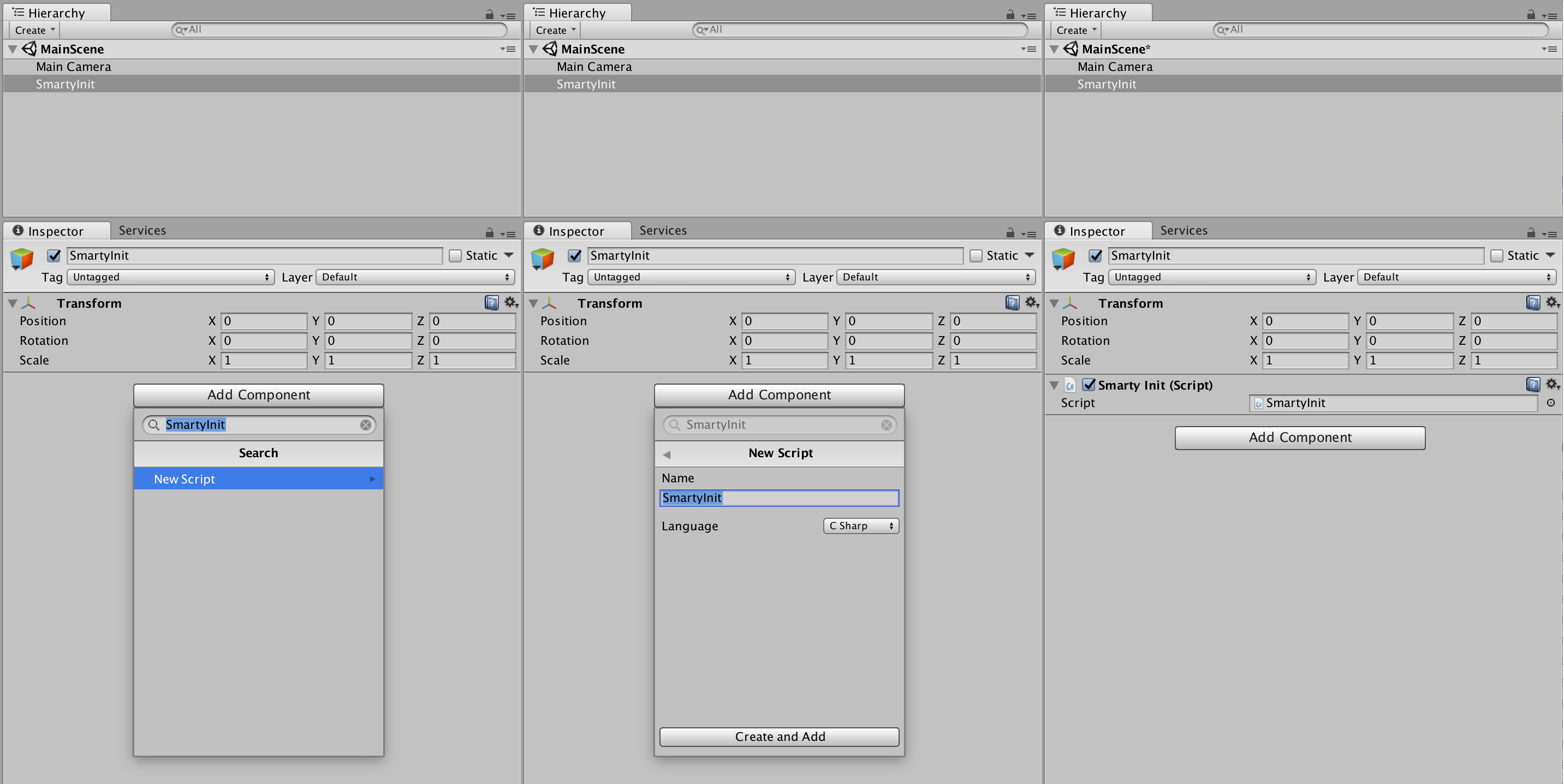
-
Open
SmartyInitscript and paste the following code:using UnityEngine; using SmartySDK; public class SmartyInit : MonoBehaviour { void Awake () { SmartyProvider.Initialize (); } } -
Save scene.
-
Make sure that
SmartyInitobject will stay alive through the whole lifetime of your app.
-
-
Should you encounter any problems, don’t forget to take a look at Troubleshooting page.