Troubleshooting
Unity
Error: Assembly has reference to non-existent assembly
Error: "An assembly with the same name `Google.IOSResolver' has already been imported."
Problem
Unity shows the following error:
error CS1704: An assembly with the same name `Google.IOSResolver' has already been imported. Consider removing one of the references or sign the assembly
Assets/PlayServicesResolver/Editor/Google.IOSResolver_v1.2.71.0.dll (Location of the symbol related to previous error)
Assets/PlayServicesResolver/Editor/Google.IOSResolver_v1.2.62.0.dll (Location of the symbol related to previous error)
Cause
It happens after importing at least two packages that uses different versions of Unity Jar Resolver.
Solution
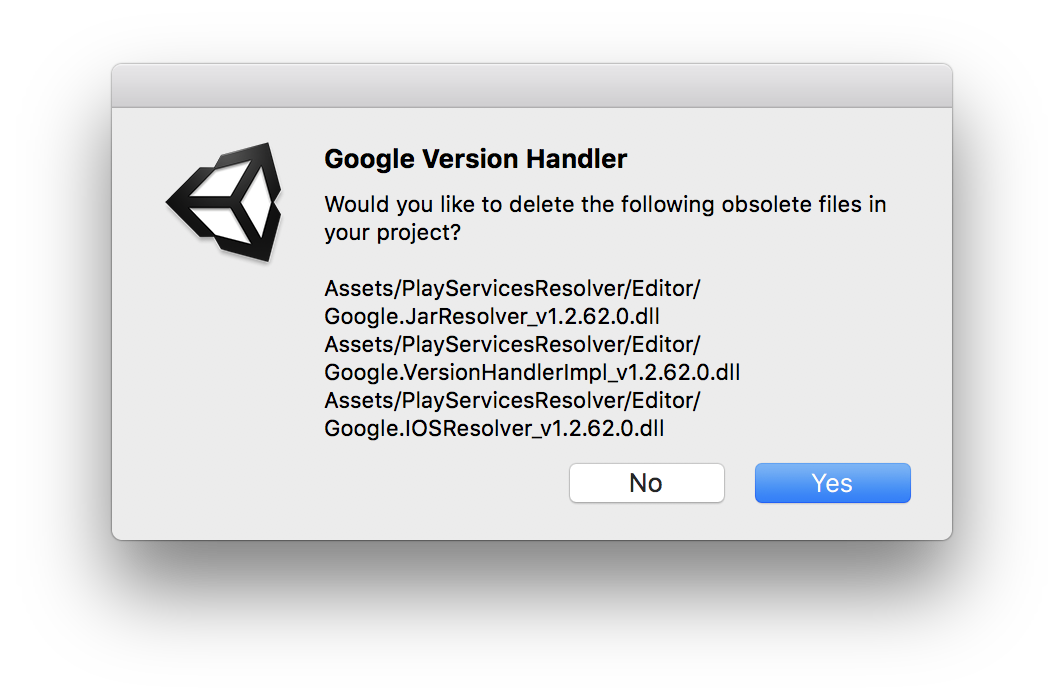
Restart Unity and allow Unity Jar Resolver Version Handler to delete obsolete files.
It will remove duplicated libraries.
Android
Unity fails to build Android application
Solution
Prepare separate Android SDK for Unity internal usage.
-
Check your Android SDK tools version.
-
Open your Android Studio and select menu item .
-
Switch to
SDK toolstab and findAndroid SDK Toolsentry.
-
-
If you have Android SDK tools < 25.3.1 then:
-
Copy
~/Library/Android/sdkdirectory to~/Library/Android/sdk-unity. -
Set Unity Android SDK directory to
~/Library/Android/sdk-unityin under .
-
-
If you have Android SDK tools >= 25.3.1 then:
-
Copy
~/Library/Android/sdkto~/Library/Android/sdk-unity. -
Replace tools subfolder in
~/Library/Android/sdk-unityas described here. -
Set Unity Android SDK directory to
~/Library/Android/sdk-unityin under .
-
|
AndroidStudio and multiple SDKs
When you open exported project in AndroidStudio it will ask you which too choose Android SDK. 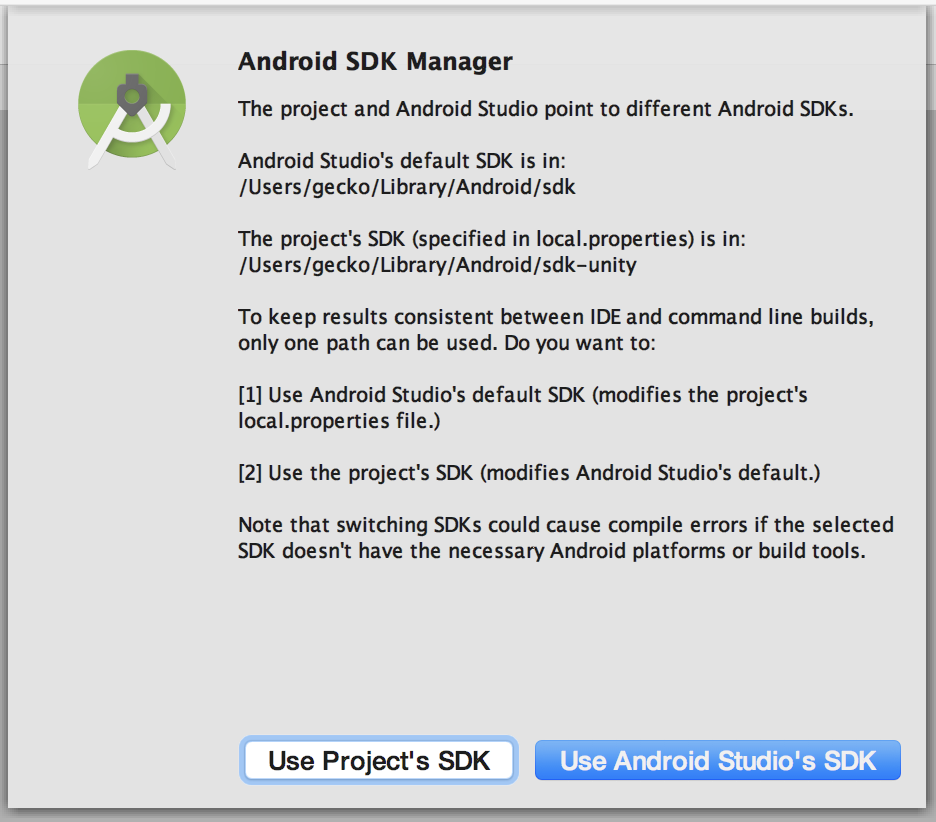
Select Selecting |
Error: "TaskInputUnionFileCollection cannot be cast to DefaultConfigurableFileCollection"
Problem
The following error:
Error:org.gradle.api.internal.tasks.DefaultTaskInputs$TaskInputUnionFileCollection cannot be cast to org.gradle.api.internal.file.collections.DefaultConfigurableFileCollectionshows up after synchronizing gradle.
This can happen after launching AndroidStudio.
Solution
Update Android Plugin for gradle to the newest version.
You can configure it in Android project main build.gradle file. For example:
buildscript {
	dependencies {
		classpath 'com.android.tools.build:gradle:2.3.1'
	}
}